Run open play from the side of the court.
Check players in as they arrive. PickleSide lines up a fair foursome for every free court, keeps the queue moving and tracks who won.
How it works
One person runs the session from a phone, tablet or laptop at the courts. Players just play.
Step 1: Add players
Type a name and give it a skill from 1 to 5 stars. New players are checked in and join the end of the queue.
Step 2: Check in and out
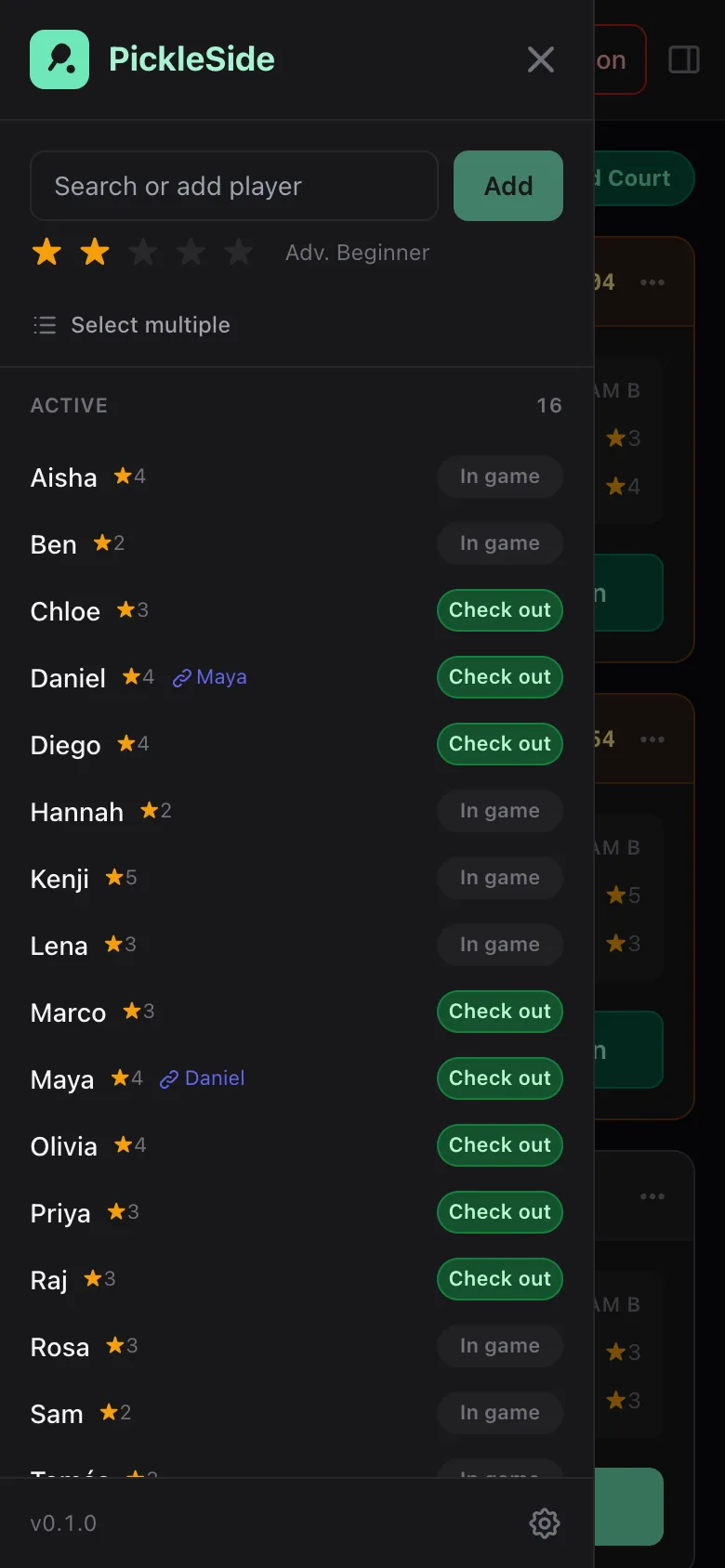
Check people out when they leave and back in when they return, one at a time or several at once with Select multiple. Checking in puts them at the end of the queue.
Step 3: Start matches
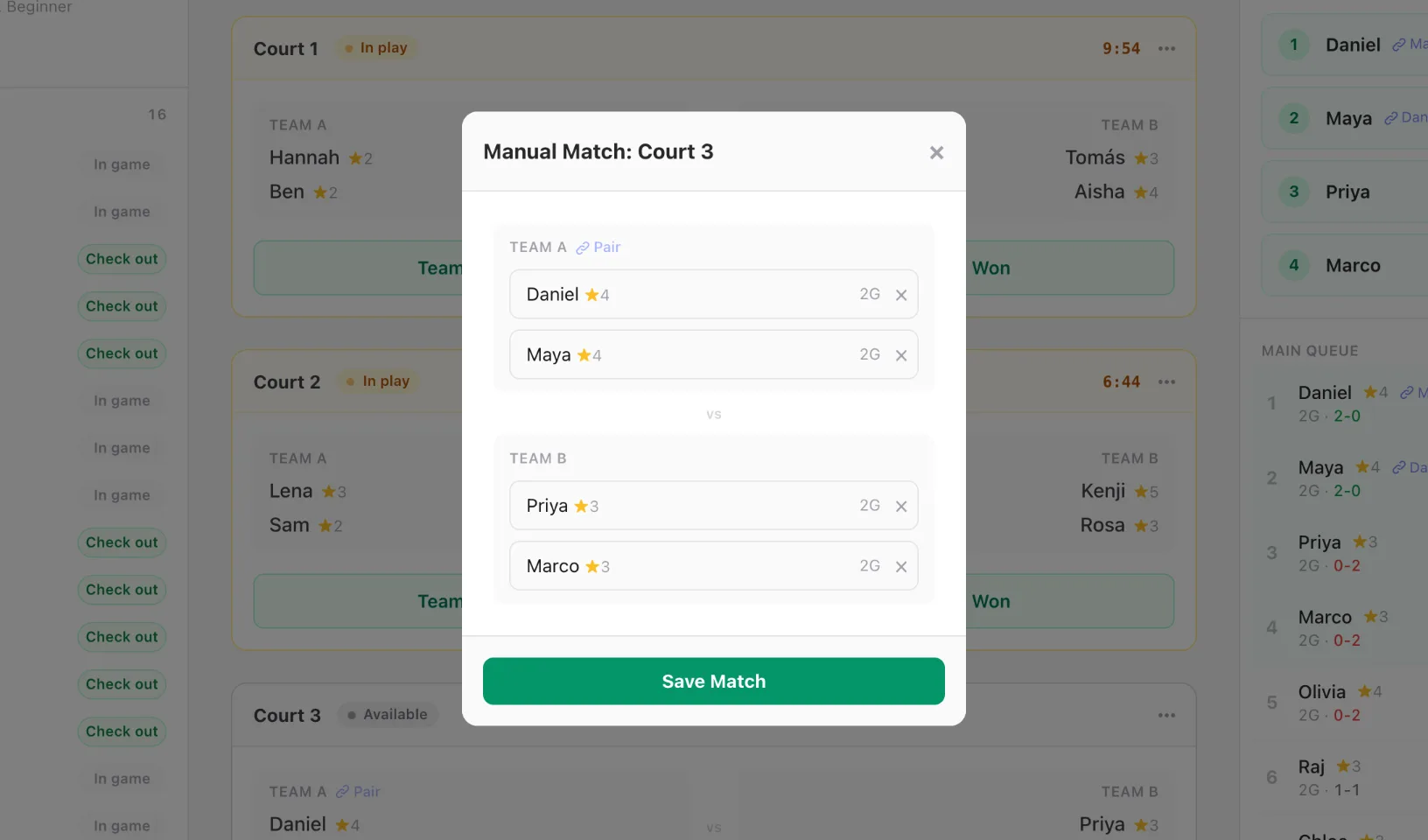
Every free court gets a suggested foursome. Tap Start Match, pick the four yourself with Manual Match, or change who is next from On Deck.
Step 4: Record winners
Tap Team A Won or Team B Won. The four go back in the queue and the court gets its next lineup.
Everything open play needs, nothing it doesn’t
Built for the organiser with a phone in one hand and a paddle in the other.
Balanced, fair lineups
Every free court gets the next four in line, split into even teams with new partners. Nobody is skipped twice, and partners stay on one team.
Courts at a glance
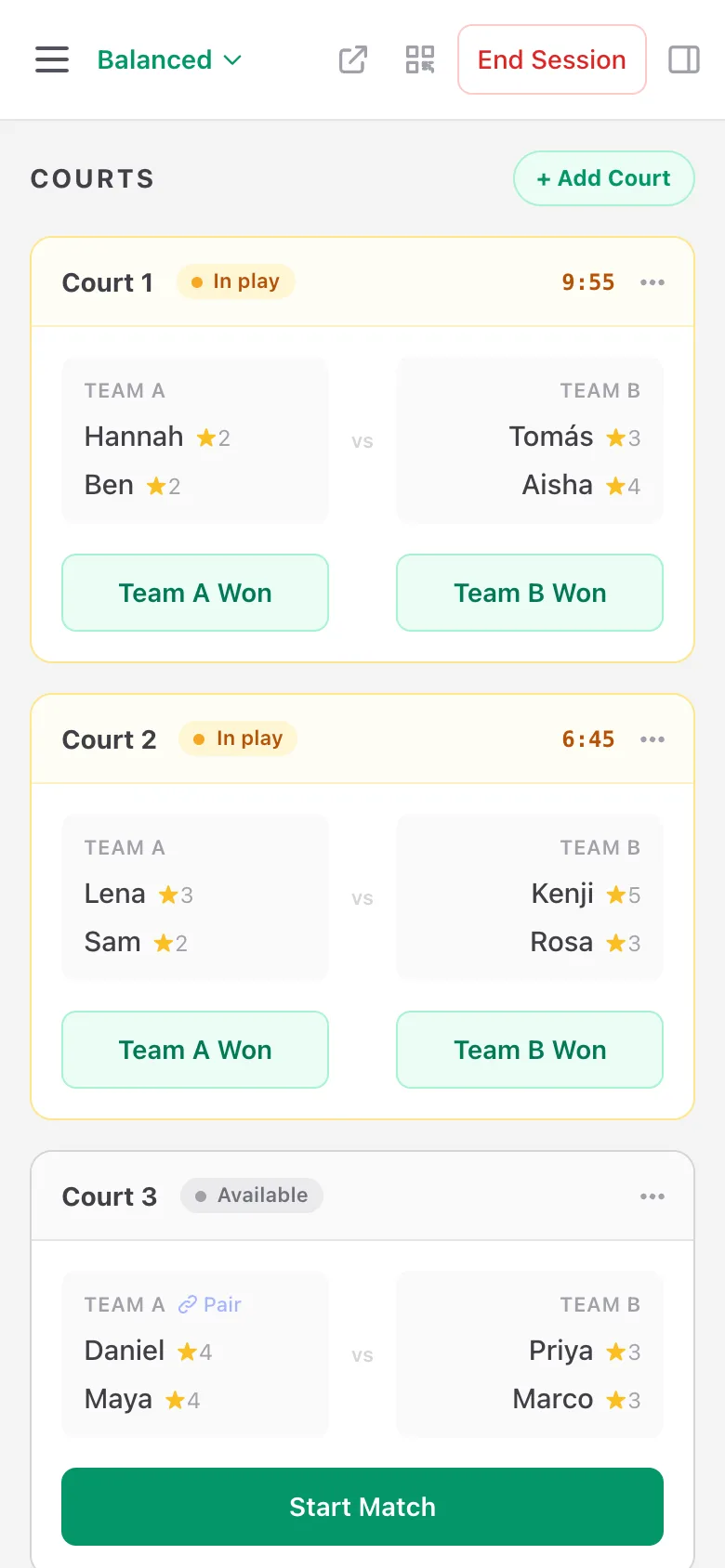
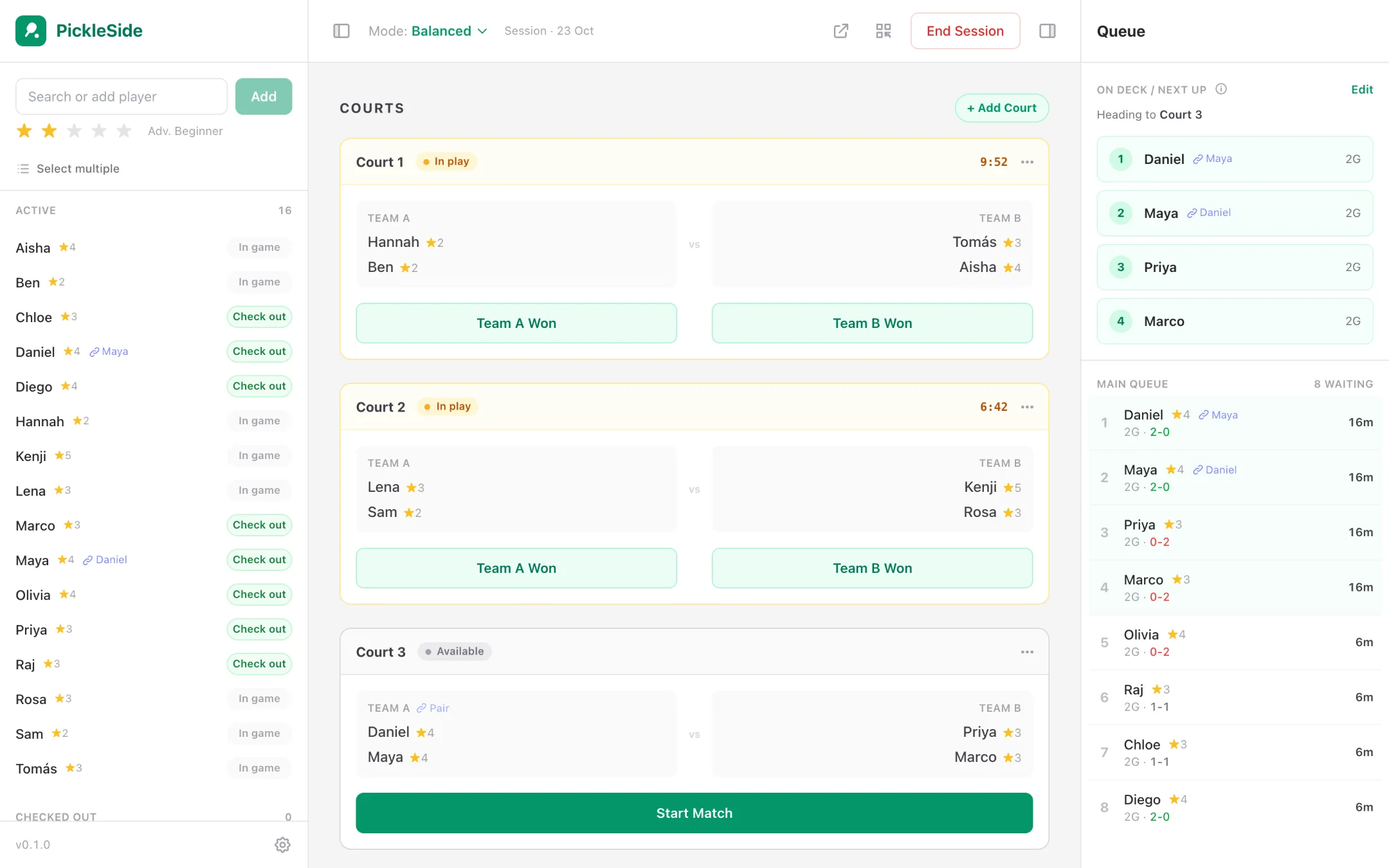
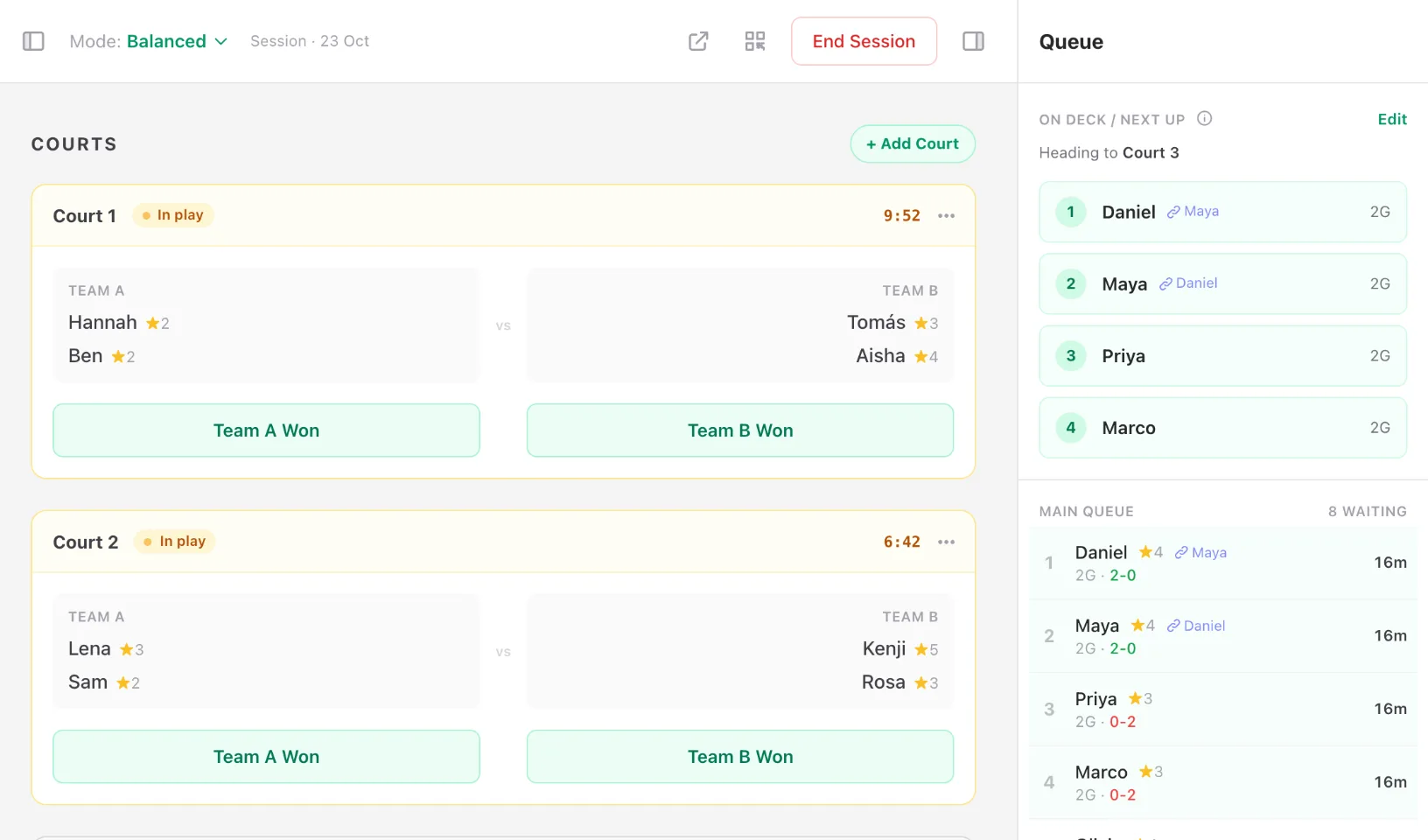
Add, rename or remove courts. Courts in play are marked in amber with a live timer, so a free court stands out right away.
On Deck, your way
On Deck shows the next four and their court, and the (i) explains how they were picked. Tap Edit to change them, even while every court is busy: your four take the next court that frees up.
Players follow live
Show a QR code and players see the courts, the queue, Top Players and recent results on their own phones, with nothing to install.
Standings for the session
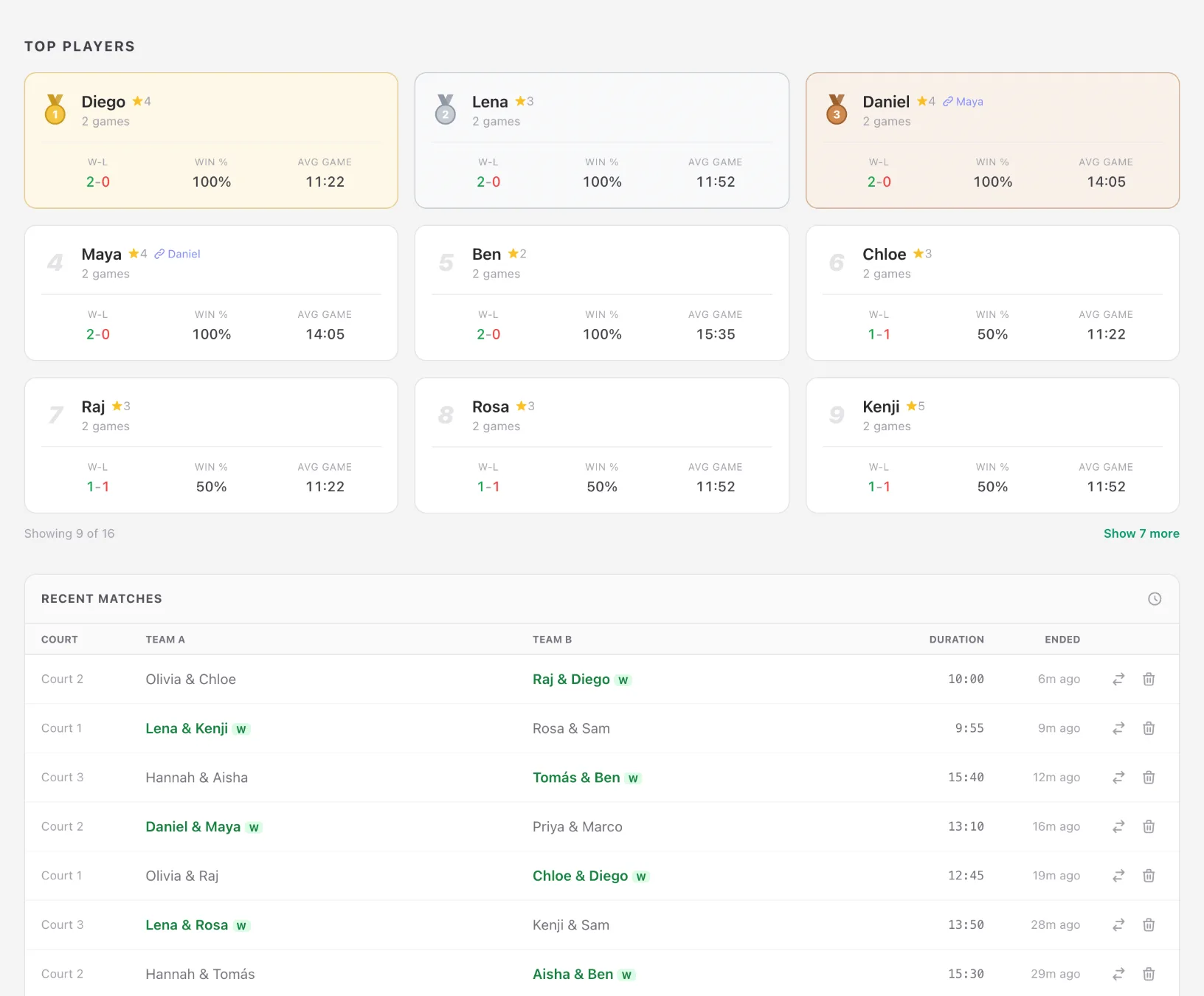
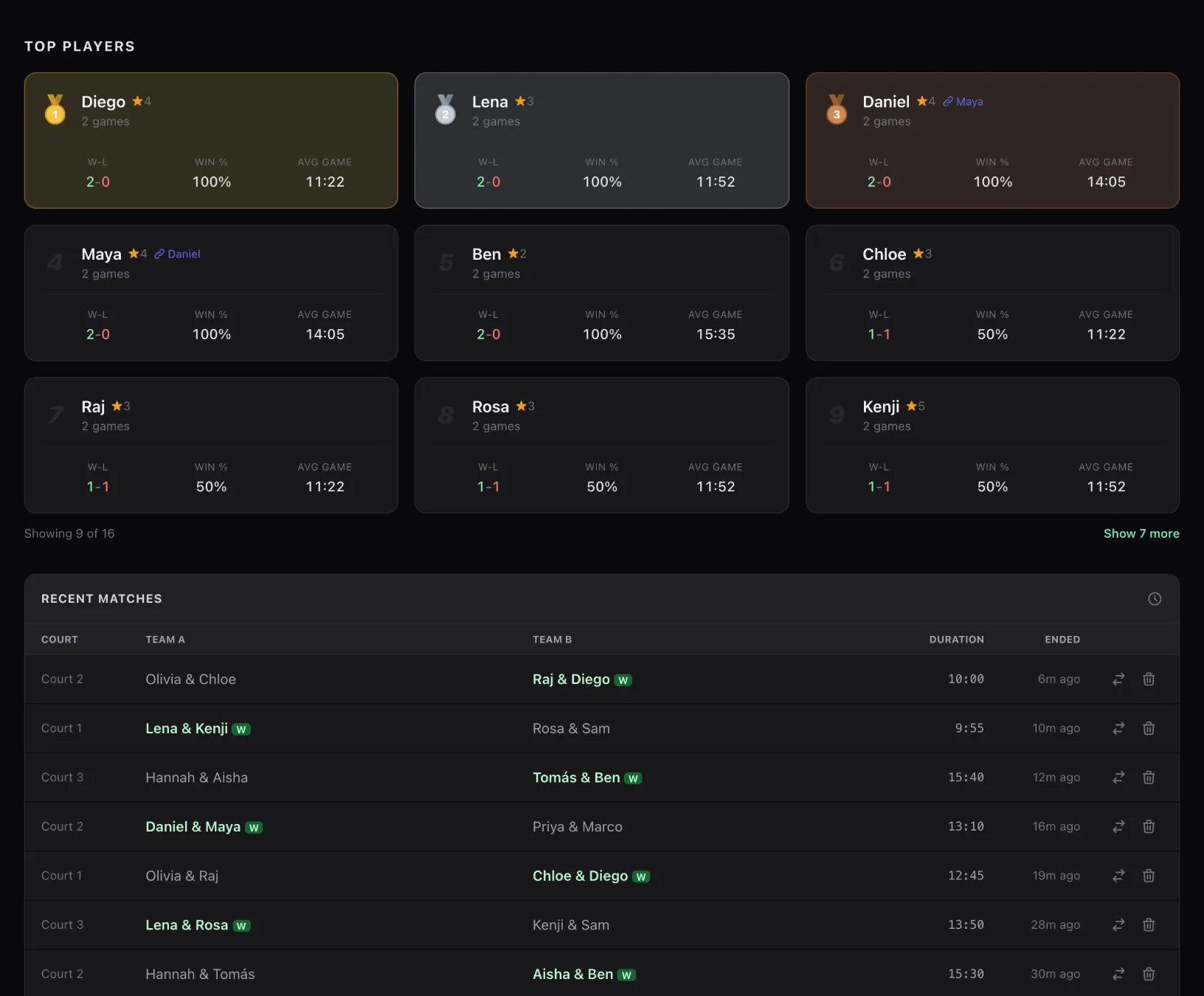
Top Players ranks wins, win % and average game. Recent Matches lets you swap a winner or delete a result.
Pick up where you left off
Refresh the page or come back later and the session is as you left it: players, courts, queue and results.
The screens you will use at the courts
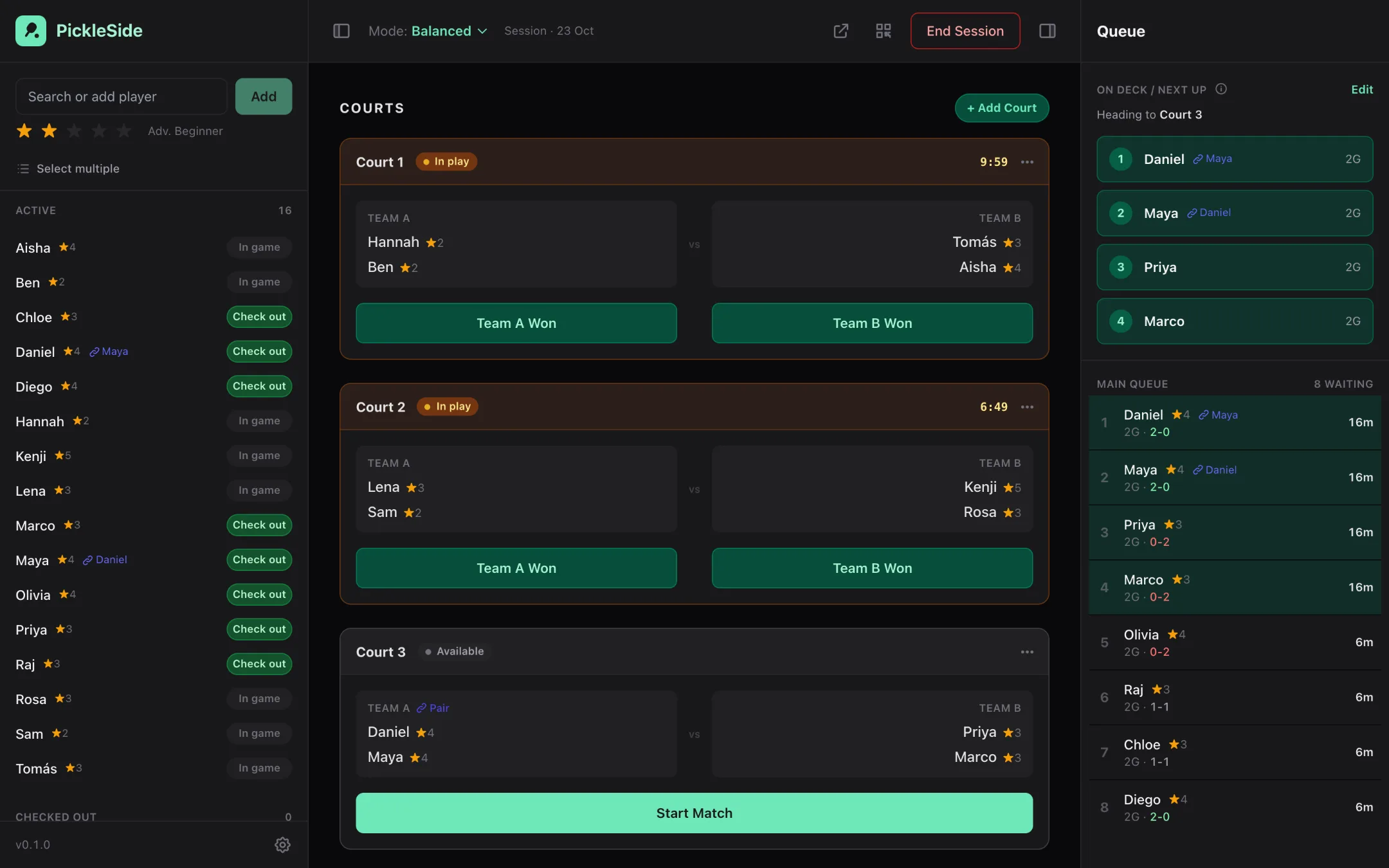
Real screens from the app, mid-session: sixteen players, three courts, a few results in.
The queue and who is on deck
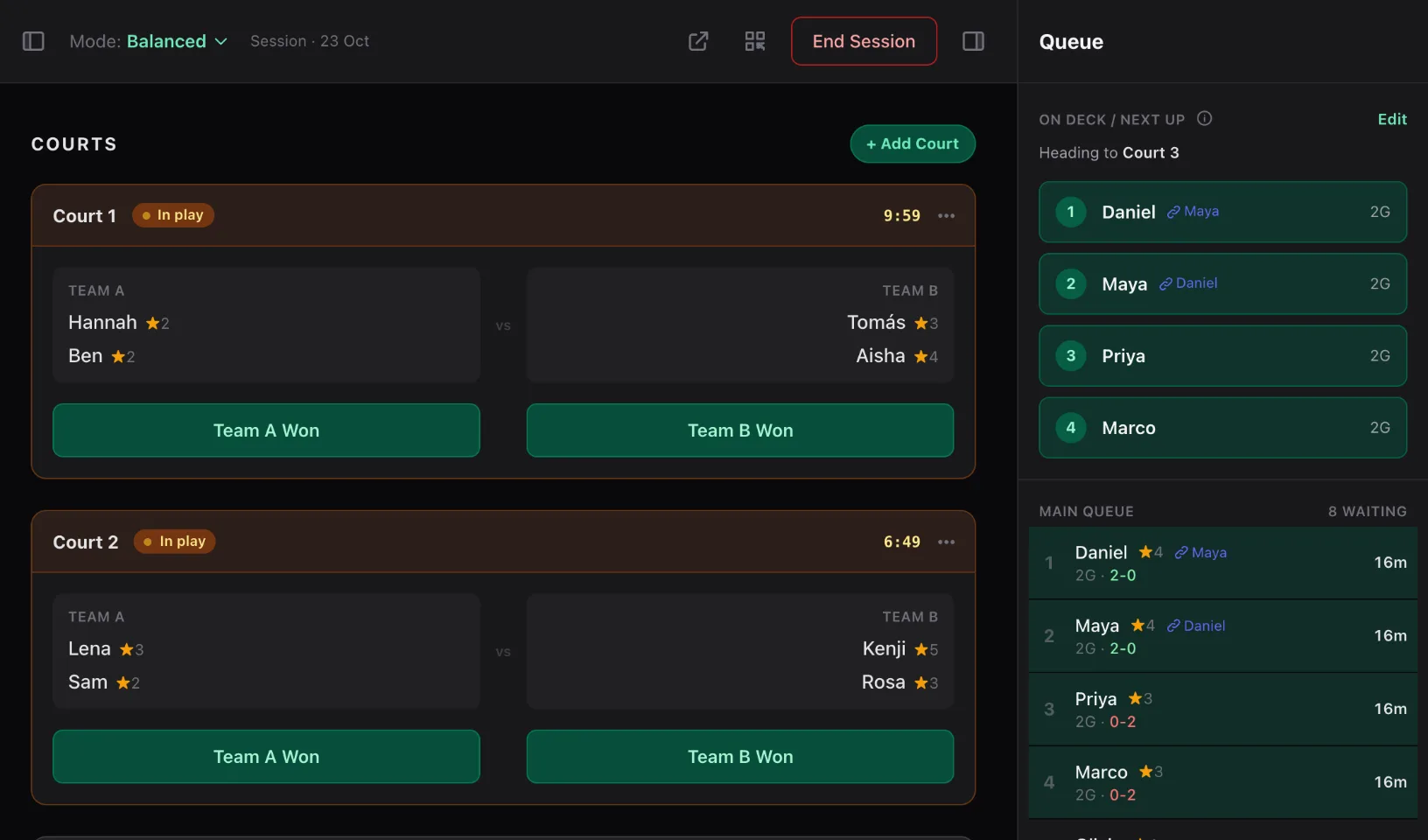
The Main Queue lists everyone waiting, in order, with how long they have waited since play began. On Deck shows the next four and the court they are heading to, so they are ready before it frees up.
Manual Match when you want a say
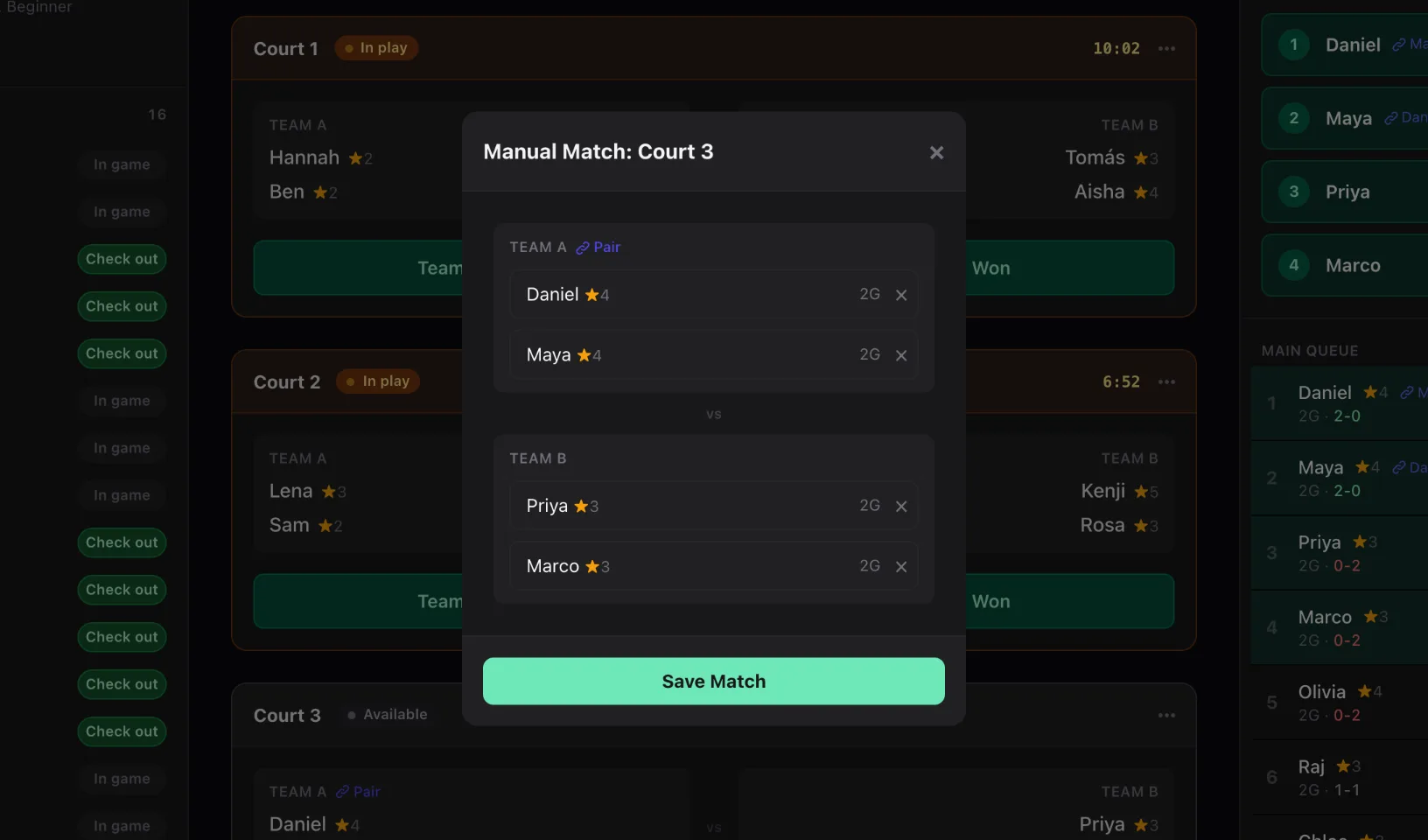
Hand-pick the four for a court, or lock in the lineup that is there. With every court busy, edit On Deck instead and your four take the next court that frees up.
Standings that stay honest
Top Players ranks the session by wins, with win % and average game length. In Recent Matches you can swap the winner or delete a match, and everyone's stats follow.
Made for the phone in your pocket
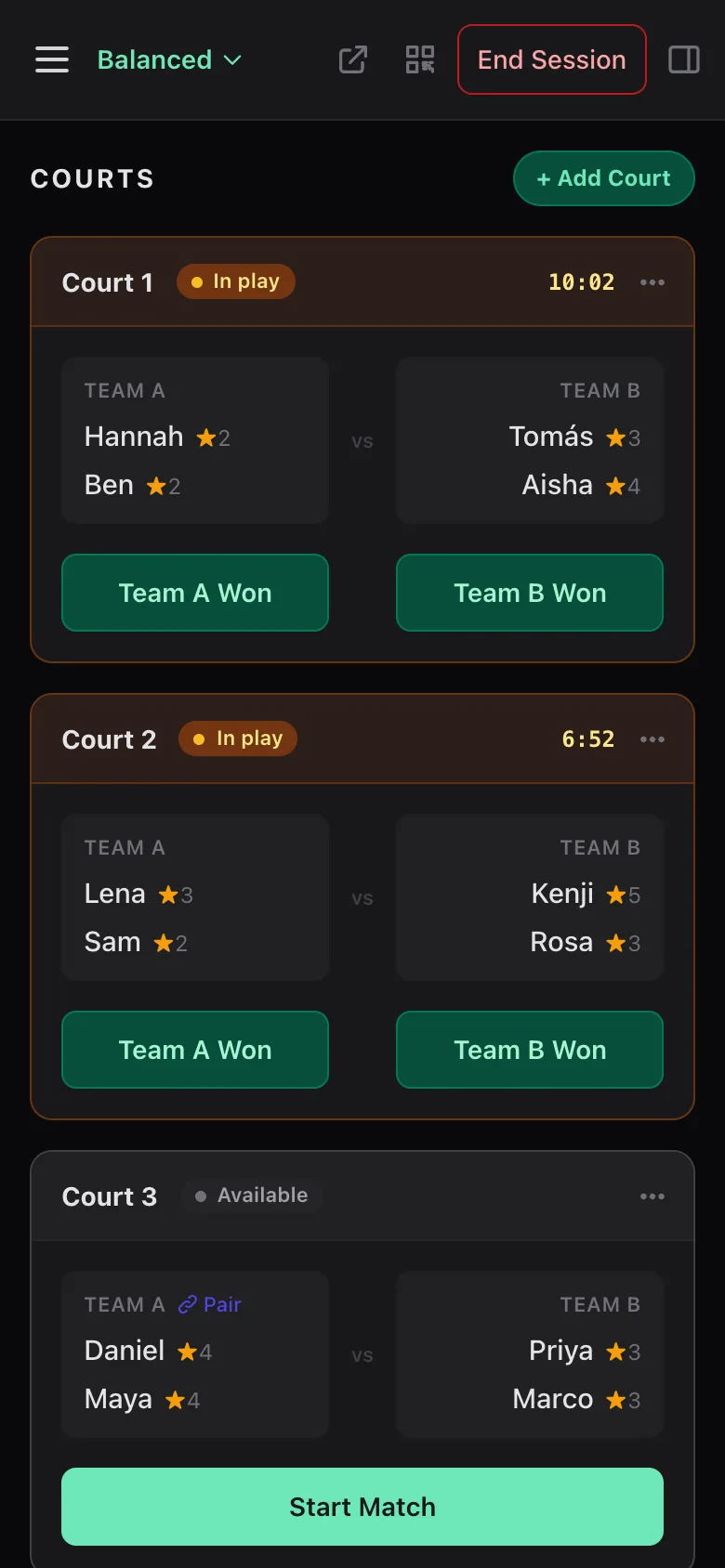
On a phone the courts stack with a live timer on each, and On Deck sits right below them with a button to open the full queue. Tap the menu and the roster slides in over a dimmed page, for adding players and checking them in.
Courts 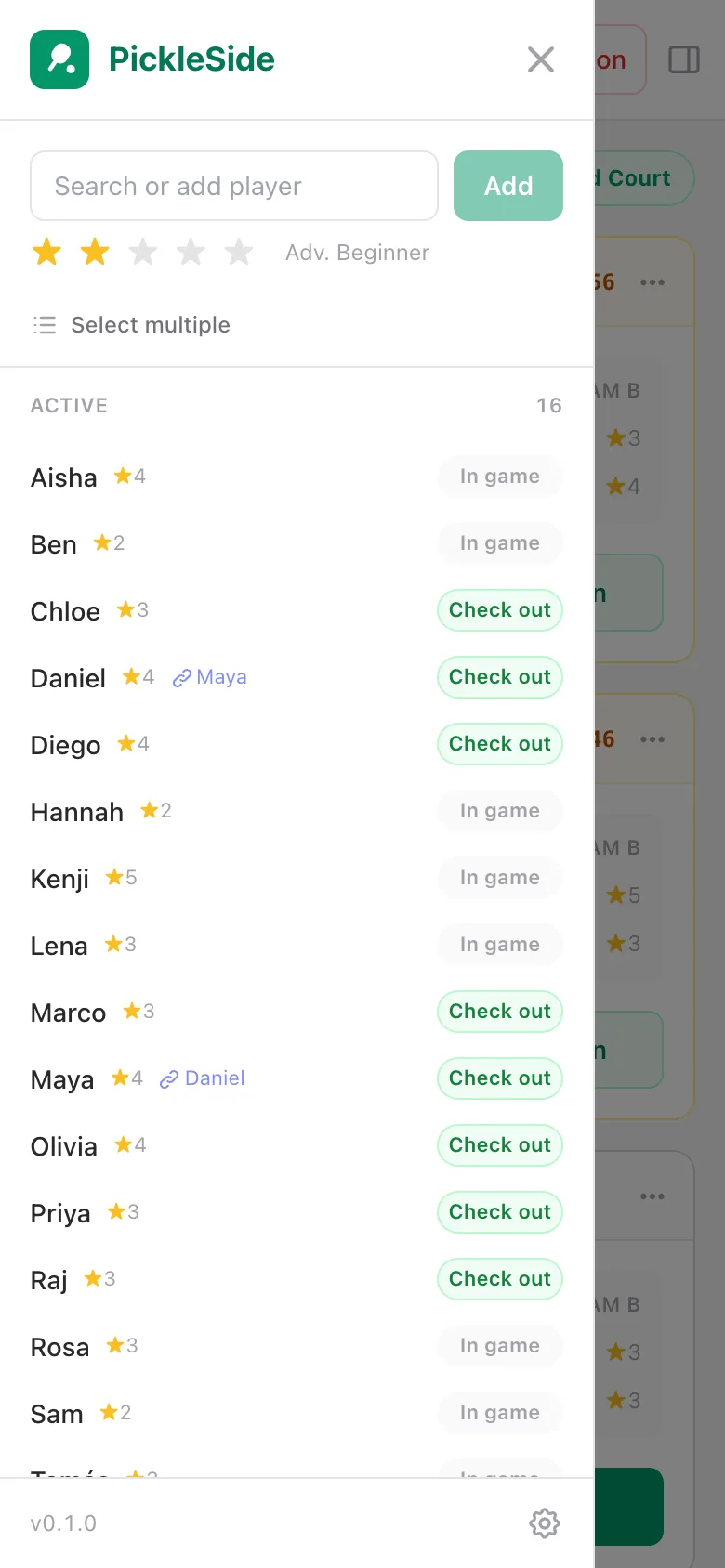
Roster Players follow along on their phones
Show the QR code from the header and players scan it. They see the courts, who is on deck, the queue, Top Players and recent matches a second or two behind, with nothing to install. They can watch but not change anything.
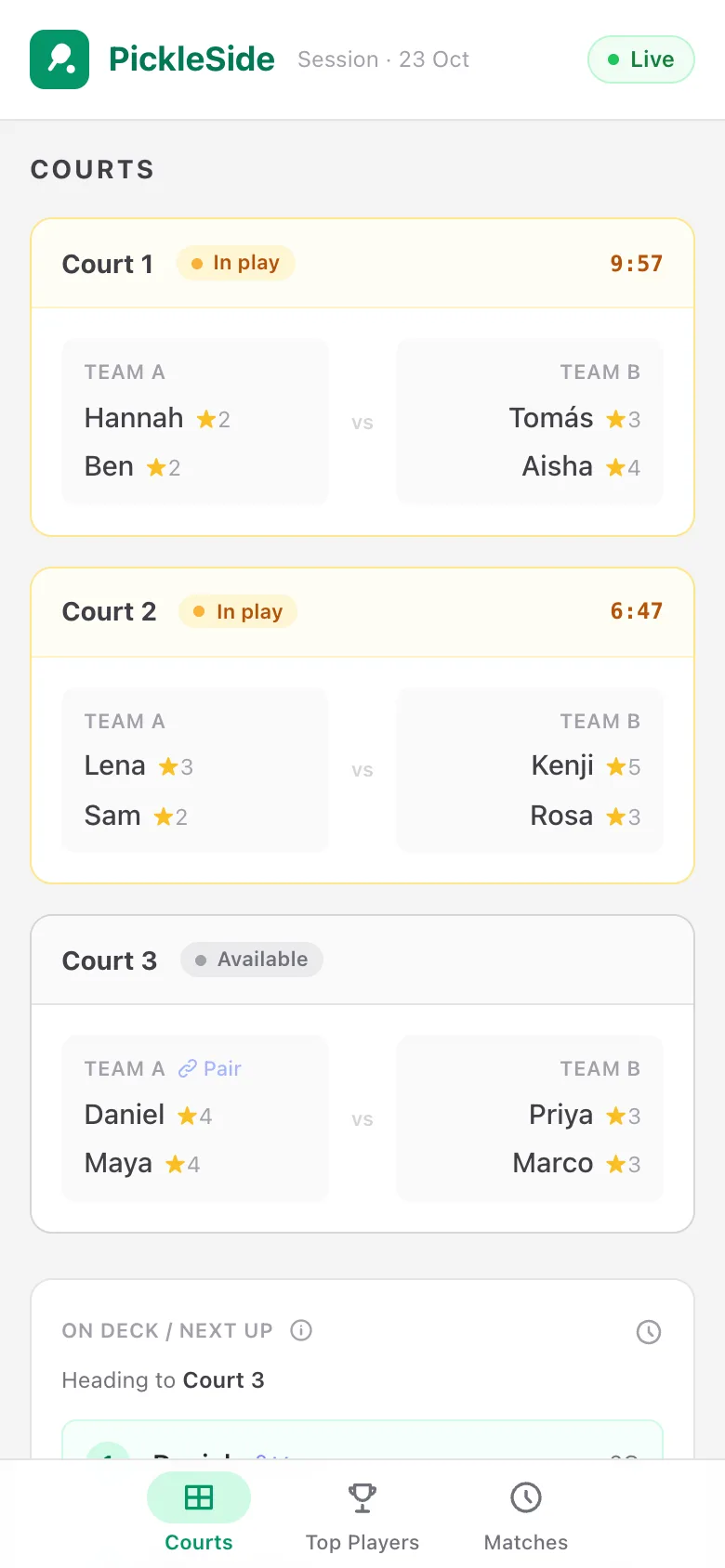
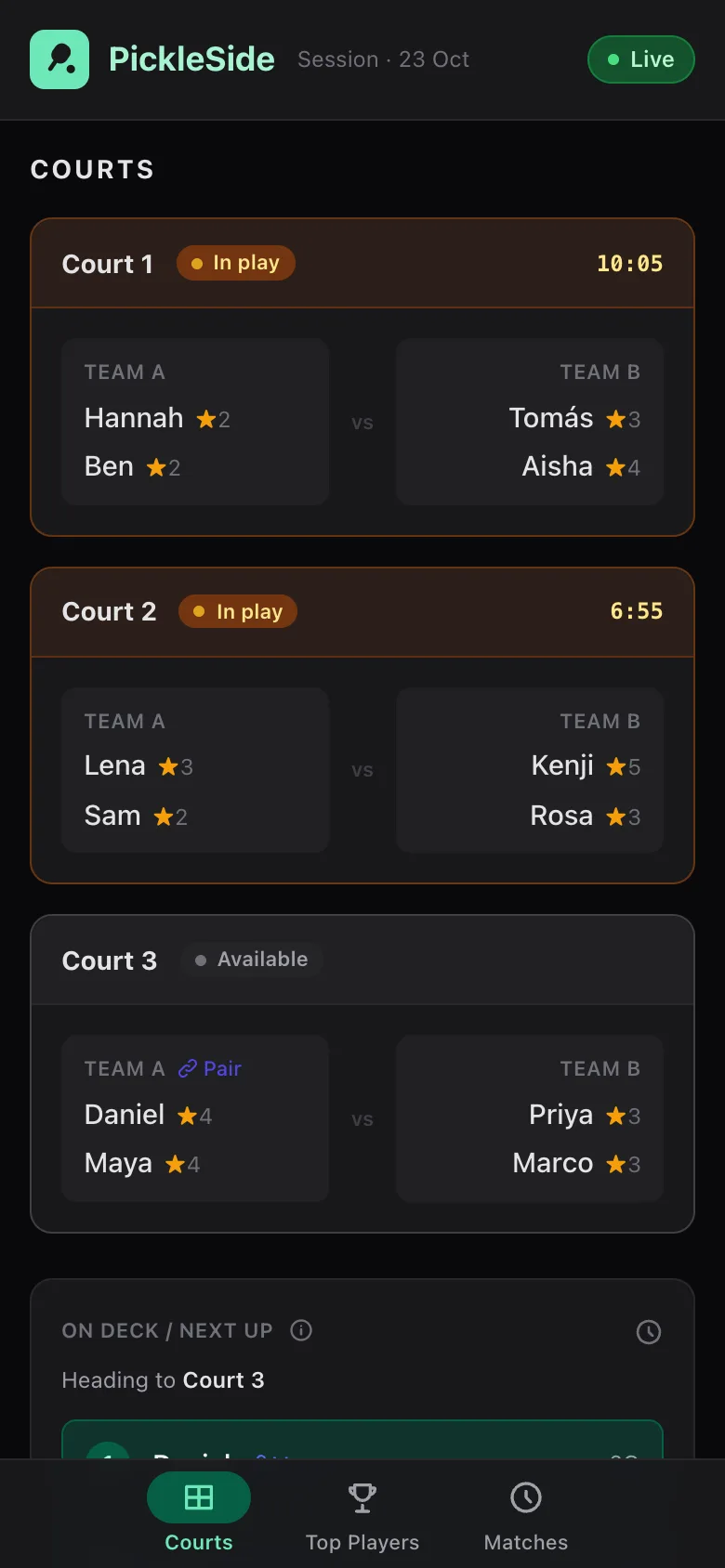
Courts and queue 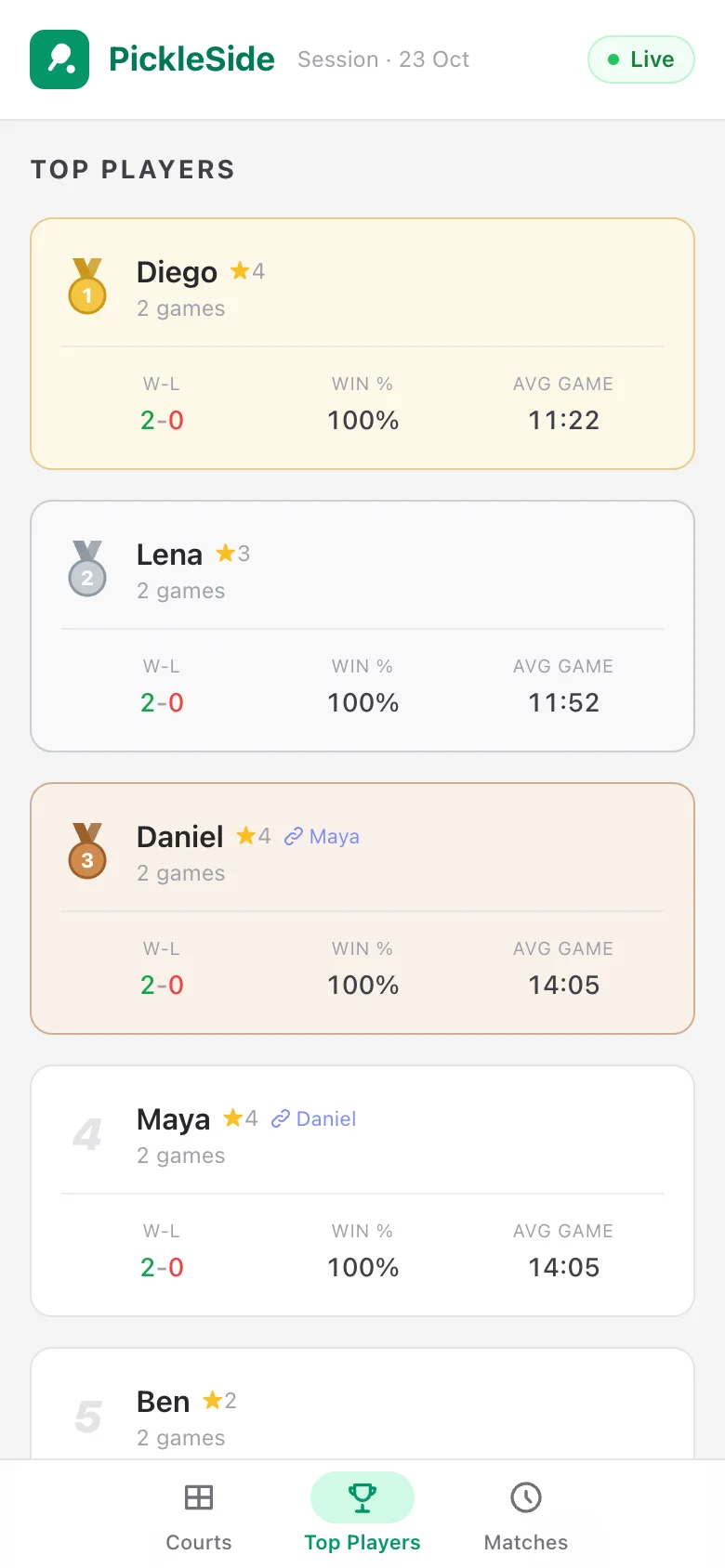
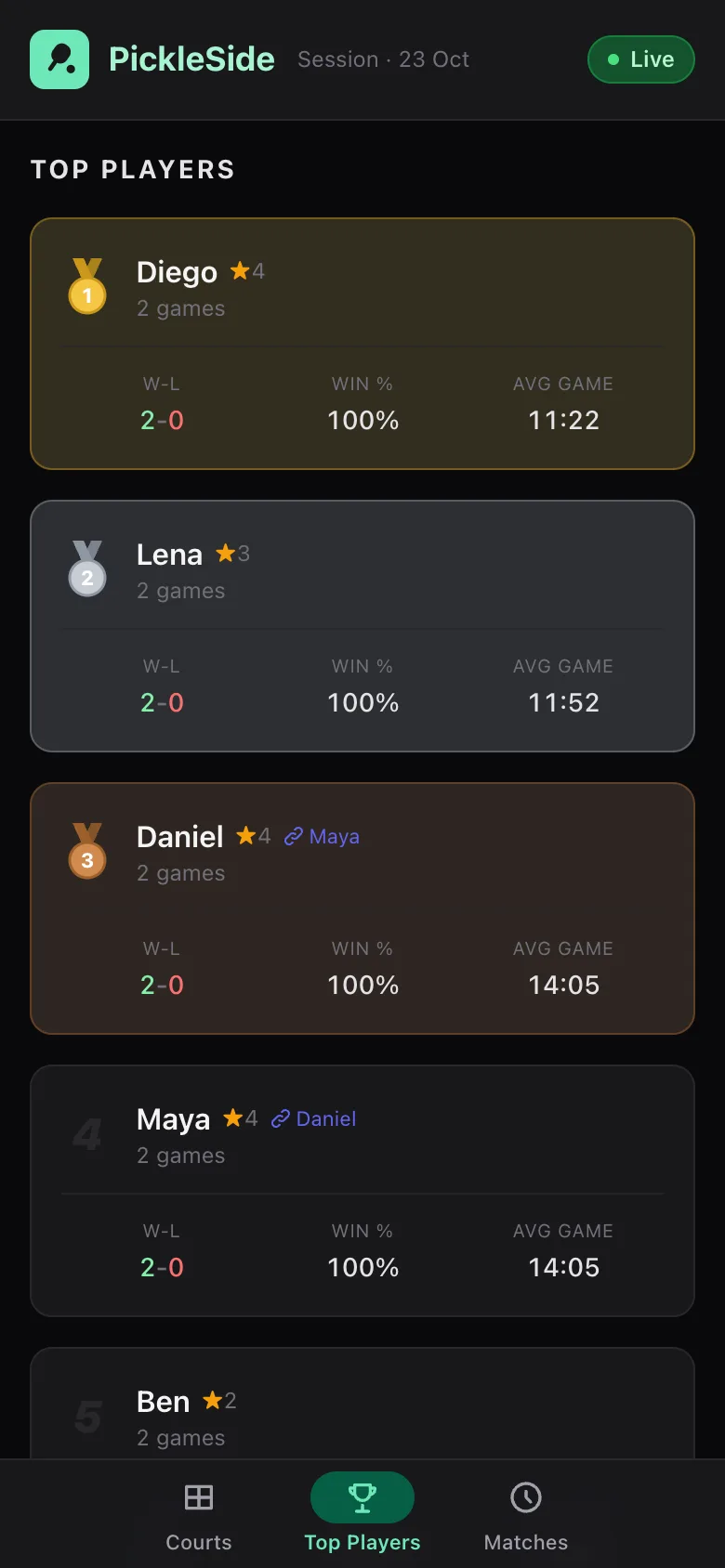
Top Players
Fair by design
PickleSide picks every lineup. These are the rules it plays by, so nobody has to argue about whose turn it is.
First come, first played. The first four in line play next. Nobody is pushed back because of their skill level.
Even teams. Those four are split into two teams as evenly as possible by skill.
New partners, new games. If those four would repeat a partner or a whole game, someone a little further back swaps in. Whoever is swapped out plays the game right after.
Pairs stay together. Two players paired as partners always land on the same team.
What On Deck shows is what happens. Once your name is On Deck, your spot is kept until a court opens. New check-ins never bump you.
A level first round. At the start, players are grouped by skill across the courts, so the first games are close.
Questions organisers ask
How do I start a session?
Open the app, add your players and tap Create Session. Check people in as they arrive and start a match on any free court. The queue and lineups take care of the rest.
Can I fix a result I got wrong?
Yes. In Recent Matches, swap the winner or delete the match, and the standings update to match. Before a match starts you can change the lineup with Manual Match, or change who is next with Edit on On Deck.
What if someone leaves mid-session?
Check them out from the roster once their game ends. They leave the queue and are not picked for new lineups, and any partner pairing is cleared. If they come back, check them in and they join the end of the line.
Phone, tablet or laptop?
Any of them. On a phone the roster slides in from the side; on a tablet or laptop it sits beside the courts. Choose light, dark or auto, seven highlight colours and four background tones.
Can players see the queue on their phones?
Yes. Tap the QR button in the header and let players scan it, or copy the link and share it. Anyone with the link sees the courts, the queue, Top Players and recent matches, a second or two behind. They can watch but not change anything. Names and win-loss records are visible to anyone who has the link.
What happens when a session ends?
End Session closes the queue. Create New Session starts fresh standings and keeps your roster and the queue order, so next week starts where you left off. The new session gets its own live link; the old one stops working.